
Maintaining and tuning
OpenVoxDB requires a relatively small amount of maintenance and tuning. However, you should become familiar with the occasional tasks outlined in this guide.
Monitor the performance dashboard
OpenVoxDB hosts a performance dashboard on port 8080, which listens only on localhost by default. The usual way to access it is via an ssh tunnel. For example,
ssh -L 8080:localhost:8080 root@<puppetdb server>
and then visit http://localhost:8080 in the browser. If OpenVoxDB is running locally, or on a remote host that is listening for external cleartext connections from your machine, you can skip the ssh tunnel and
visit either http://localhost:8080 or http://<puppetdb server>:8080 directly.
OpenVoxDB uses this page to display a web-based dashboard with performance information and metrics, including its memory use, queue depth, command processing metrics, duplication rate, and query stats. It displays min/max/median of each metric over a configurable duration, as well as an animated SVG “sparkline” (a simple line chart that shows general variation). It also displays the current version of OpenVoxDB and checks for updates, showing a link to the latest package if your deployment is out of date.
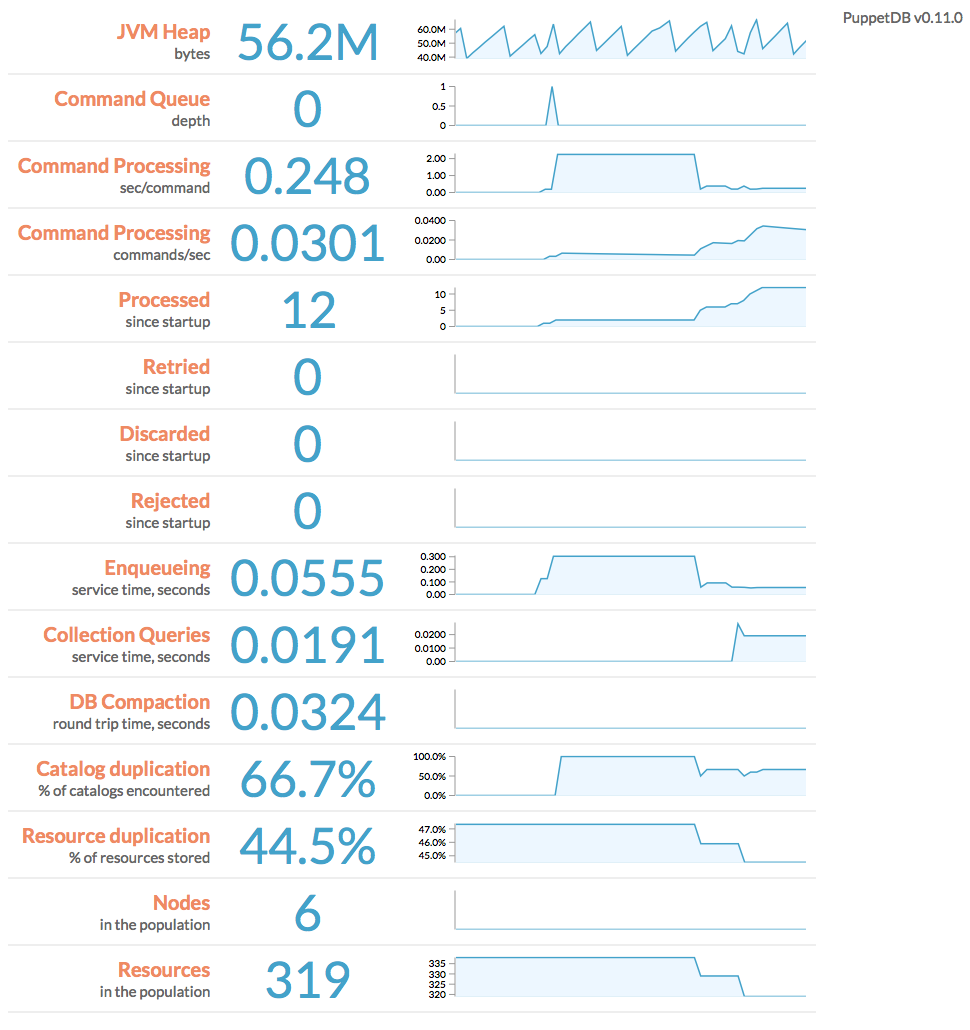
You can use the following URL parameters to change the attributes of the dashboard:
width: width of each sparkline, in pixelsheight: height of each sparkline, in pixelsnHistorical: how many historical data points to use in each sparklinepollingInterval: how often to poll OpenVoxDB for updates, in milliseconds
For example, http://localhost:8080/pdb/dashboard/index.html?height=240&pollingInterval=1000
Deactivate or expire decommissioned nodes
When you remove a node from your Puppet deployment, it should be marked as deactivated in OpenVoxDB. This will ensure that any resources exported by that node will stop appearing in the catalogs served to the remaining agent nodes.
- OpenVoxDB can automatically mark nodes that haven’t checked in recently as expired. Expiration is simply the automatic version of deactivation; the distinction is important only for record keeping. Expired
nodes behave the same as deactivated nodes. By default, nodes are expired after 7 days of inactivity; to configure this, use the
node-ttlsetting. -
If you prefer to manually deactivate nodes, use the following command on your primary server:
sudo puppet node deactivate <node> [<node> ...] - Any deactivated or expired node will be reactivated if OpenVoxDB receives new catalogs or facts for it.
Although deactivated and expired nodes will be excluded from storeconfigs queries, their data is still preserved.
Note: Deactivating a node does not remove (e.g.
ensure => absent) exported resources from other systems; it only stops managing those resources. If you want to actively destroy resources from deactivated nodes, you will need to purge that resource type by using theresourcesmetatype. Note that some types can’t be purged, and several others (such as users) usually shouldn’t be purged.
Clean up old reports
When the OpenVoxDB report processor is enabled on your primary server, OpenVoxDB will retain reports for each node for a fixed amount of time. The default setting is 14 days, but this
timeframe can be altered by using the report-ttl setting. Note that the larger the value you provide for this setting, the more history you will retain, and your database size will grow
accordingly.
Clean up the dead letter office
OpenVoxDB will react to certain types of processing failures by storing a complete copy of the offending input, along with retry timestamps and error traces, in the “dead letter office” (DLO). Over time, the DLO
can grow quite large. If you’re not actively troubleshooting an issue, you might be able to recover a significant amount of space by deleting the contents of the DLO. It can be found at under
OpenVoxDB’s data directory at stockpile/discard, which by default is /opt/puppetlabs/server/data/puppetdb/stockpile/discard.
View the log
OpenVoxDB’s log file lives at /var/log/puppetlabs/puppetdb/puppetdb.log. Check the log when you need to confirm that OpenVoxDB is working correctly or to troubleshoot visible malfunctions. If you have changed
the logging settings, examine the logback.xml file to find the log.
The OpenVoxDB packages configure log file rotation via Logback in order to keep log files from becoming too large. The “logback.xml” file contains the rotation parameters. By default, the active log file is compressed into a .gz file if it exceeds 200 MB in size. At most 90 days and at most 1 GB of the most recent .gz archives are preserved on disk.
Tune the max heap size
Although we provide rule-of-thumb memory recommendations, OpenVoxDB’s RAM usage depends on several factors. Your memory needs will vary depending on the number of nodes, frequency of Puppet runs, and amount of managed resources. For instance, nodes that check in one time a day requires significantly less memory than those that check in every 30 minutes.
The best way to manage OpenVoxDB’s max heap size is to estimate a ballpark figure, then monitor the performance dashboard and increase the heap size if the “JVM Heap” metric regularly approaches the maximum. You may need to revisit your memory needs whenever your site grows substantially.
The good news, however, is that memory starvation is actually not very destructive. It will cause OutOfMemoryError exceptions to appear in the log, but you can restart OpenVoxDB with a larger
memory allocation and it’ll pick up where it left off — any requests successfully queued up in OpenVoxDB will get processed.
Tune the number of threads
When viewing the performance dashboard, note the depth of the message queue (labeled “Command Queue depth”). If it is rising and you have CPU cores to spare, increasing the number of threads may help to process the backlog more rapidly.
If you are saturating your CPU, we recommend lowering the number of threads. This prevents other OpenVoxDB subsystems (such as the web server, or the MQ itself) from being starved of resources and can actually increase throughput.
Redo SSL setup after changing certificates
If you’ve recently changed the certificates in use by the OpenVoxDB server, you’ll also need to update the SSL configuration for OpenVoxDB itself.
If you’ve installed OpenVoxDB from Puppet packages, you can simply re-run the puppetdb ssl-setup command. Otherwise, you’ll need to again perform the SSL configuration steps outlined in
the installation instructions.